Ellucian Degree Works™ is a comprehensive academic advising, transfer articulation, and degree audit solution that aligns students, advisors, and institutions to a common goal: helping students graduate on time.
Who is Eligible?
Active Faculty or Staff
Introduction: Degree Works version 507sp1 as of 8/10/2022
Benefits of using Degree Works
- Creation of student audits on demand using worksheets and degree audits.
- Clear visual indicators showing degree course requirements and progress.
- Degree progress is accessible on-line for both students and staff.
- Advising tool.
- Planning and forecasting tool.
- Exception tracker.
Design: Architectural, Functional, Authentification
Architecture

Functional Process Flow Example
- First: Creation of "Scribe" (programming code). Scribe is a DW (Degree Works) language consisting of certain keywords and syntactical rules used to define institutional requirements into the computer. The institutional requirements are entered using a program called Scribe, resulting in a series of requirement blocks. These blocks are then read by the first of the two DW processing engines. The Parser engine validates the requirement blocks, assuring they are lexically and syntactically correct so that they may be properly interpreted by the Auditor engine.
- Second: The Auditor engine reconciles student academic data from the student information system with the requirement blocks that have been built by users and then validated by the Parser engine. The Auditor engine actually evaluates the student course data against the appropriate requirement blocks, determining which academic requirements have been satisfied and which await completion. The audit results are stored in a database for reporting and review by the institutional staff.
- Third: The Output engine interprets the audit results and produces printed and online audit reports. Online viewing of audit results is accomplished using DW on the web, which may be made available to the Registrar, faculty or students. It is through DW on the web that exceptions and substitutions are entered as well as advisor notes. Security to control "who accesses what" is enforced by DW on the web.
Functional Process Flow Example
- Programmer (Scriber) interprets OU course catalog into Degree Works code called Requirement Blocks.
- The Requirement Blocks are read by Parser Engine. (Scripts on Web/Classic server above: DAP16 batch & DAP13 online)
- Auditor Engine combines student data with Parser Engine output to produce "Audits". (Scripts on Web/Classic server above: DAP22 batch & DAP14 online)
- Nightly cron job on Web/Classic server (dwadmin userid/RAD30) runs batch job to pull students into Degree Works database from Banner database. (Other batch extracts also run... explained in Operational/Support Section) Commonly called the DW Bridge or BIF.
Functional Process Flow Example
- Parser Engine
- Institution's degree requirements are "put into" or scribed into blocks.
- These blocks are checked to make sure they are syntactically correct through the use of a Parser Engine.
- Once they are determined to be correct, the blocks can be saved and used by Degree Works.
- DAP13 is the program that runs the parser engine.
- Auditor Engine
- Once the blocks have been successfully parsed and saved, they can be used to compare against the student's data to determine if the student meets the block's requirements.
- This comparison is called the Auditor Engine.
- The results from this comparison are stored in the database for reporting and for viewing by either institutional staff(advisors, registrar, etc.) or the student.
- The Auditor Engine is a program called DAPaudit or DAP22.
- Output Engine
- Interprets the audit results.
- Produces printed and online audit reports.
- Online viewing of the audit results is accomplished using Degree Works on the Web.
- DAP15 is the program that runs the output engine.
Authentification Flow for DW Dashboard URL

Authentification Flow for DW Scribe URL

Authentification Flow for DW Admin URL

Authentification Flow for DW Transfer Equiv URL

Authentification Flow for DW Transit PC Tool

Better DW Reporting with Argos
TBD - CPA engine, Argos pre-written blocks...
Operations / Support / How-to
Documentation Locations
Web URL'S
TEST
PROD
Host
TEST
- Web/Classic Server - ea-dwclassic-t03.dev.oakland.edu
- Springboot Server - ea-dwsb-t03.dev.oakland.edu
- Oracle Database Server - ea-bantestdb-t01.dev.oakland.edu
- Degree Works - ORALCE_SID = DWTEST
Banner - ORACLE_SID = TEST
UAT
Web/Classic Server - ea-dwclassic-u03.dev.oakland.edu
Springboot Server - ea-dwsbuat.u03.deb.oakland.edu
Oracle Database Server - ea-bantestdb-t01.dev.oakland.edu
Degree Works - Oracle SID = DWUAT
Banner - Oracle SID = TEST
PROD
Web/Classic Server - ea-dwclassic-p03.sys.oakland.edu
Springboot Server - ea-dwsb-p03.sys.oakland.edu
Oracle Database Server - ea-banproddb-p01.sys.oakland.edu
Degree Works - ORALCE_SID = DWPROD
Banner - ORACLE_SID = PROD
Start and Stop Degree Works
See Google Sheet Banner Triage document for instructions...
Extracts
Applicant(ban40) Student(ban40) Advisor(ban45) Staff(ban45) Course(ban41) Equiv(ban43) UCX(ban44) - Note!!! Only run once during setup, running this again will wipe out configuration tables...
Monitoring
TBD- InterMapper
Tools
Transit PC Tool Debugging
Password Resets
OU DW Advisor User Request
- The request will start with the DegreeWorks - User Request Form being filled out. https://forms.oakland.edu/
- Once approved by the submitter, a FootPrints Ticket will appear in our queue.

- Open the ticket and copy the URL shown at the bottom into a Chrome incognito browser.
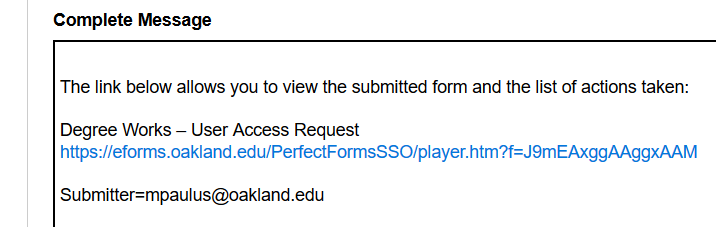
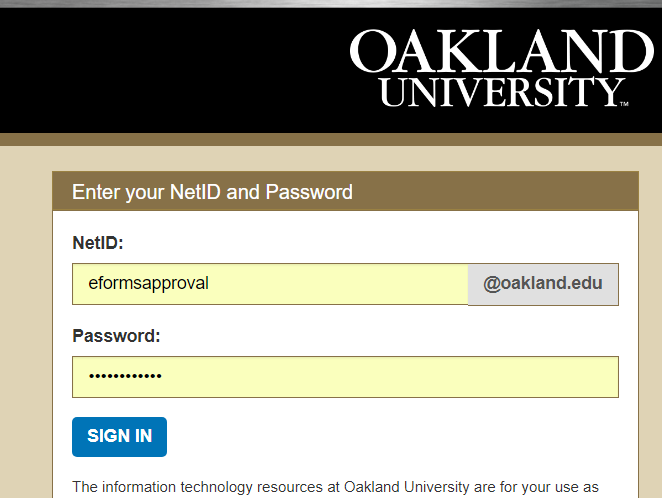
- You should be prompted to enter id/pw to get into PerfectForms… id = eformsapproval / see Nameeta for password.
- This will bring up the request form.
- Note Requester role: ADV or Staff (ADVX) or Faculty (ADVX). This will come into play later when adjusting the user in the SHELL application.
- Check signatures at bottom to see if Supervisor and Registrar have approved.
- Make note of applicant email, first and last name. Verify the Gid and Pidm is in test and prod banner. (The email will be the matching item between the request form and banner.
- Special Case: Note: May have to be done by someone with DBA access. If advisor is to be added to Dwtest and the advisor isn't in banner test, then:
- Sign into Banner TEST as BANSECR and assign GOAMTCH object/form to yourself (ex: mpaulus)
- See: https://support.oakland.edu/TDClient/33/Support-Center/KB/ArticleDet?ID=127 on object privilege assignment instructions…
- Go to SPAIDEN , click generate ID
- It will take you to check for a duplicate in GOAMTCH, type in "Person" in the matching source drop down. Page down and enter info. Only need to enter first and last name.
- the click duplicate check, and then if ok, click create new which takes us back to SPAIDEN. The person will be added with a newly generated Gid and Pidm. These need to be changed to match their PROD numbers.
- Go into Banner TEST DB, SPAIDEN table (using SQL*Developer or Toad) and modify newly created record. Type in correct Gid and Pidm matching them to PROD.
- Go into Goremal and add a record for the new person with "test." appended to the front of email.
- End Special Case
For test and/or prod.
- Sign into classic/web server as yourself then, sudo su - dwadmin
- Type: bannerextract advisors Gid_number_of_new_advisor
- Go to DW Web, ADMIN
- Test URL:https://dwjaptst.oakland.edu:8443/dwShell/
- Prod URL:https://dwjapp.oakland.edu:8443/dwShell/

- Users tab, look up new

- chg from ADVX to ADV, chg pw to default for Advisors… See Mike Paulus for pw.
- Add Group SRNADV
- Add Key ANYSTUID
- Save groups and keys…

Replace All Scribe Blocks in Production with the ones from Test
- This process replaces ALL Scribe blocks in Prod with the ones from Test.
- Only do this upon request from Registrar's office.
- Entire process must be completed by 8:00 a.m. on Weds. maintenance window.
On Host bdwdapwebfe2
- Sign into host with your admnet id / pw.
- sudo su - dwadmin
- cd datac
- ls -lart
- copy the last backup of the Scribe blocks to temp.
- cp -p reqblocks20180111.tar /tmp/reqblocks20180111.tar
- chmod 777 /tmp/reqblocks20180111.tar
On Host bdwdapwebfe1
- Sign into host with your admnet id / pw.
- sudo su - dwadmin
- cd datac
- copy from test to prod (current host) the Scribe backup file.
- Load the file into prod.
- dapblockload R reqblocks20180110.tar
- Takes a while to run, over an hour sometimes... After completion run: dap16all
- Update footprint ticket from Registrar office.
Create Batch Audit PDFs from command line
- Login to server as dwadmin
- cd to common directory
- cp DAP22IDS_toPrintPDF DAP22IDS
- cd to data directory
- put ID file in directory. Name it like MYFILE.ids where MYFILE is the name of your file
- run DAP22IDS job: dap22ids MYFILE.ids
- PDF files are put in admin/pdfreports directory. We have a GO Anywhere job that copies them to GO Anywhere so customer can pick-up from there.
- cd to common directory
- Copy original DAP22IDS file back: cp DAP22IDS10160206 DAP22IDS
Additional Support
- OU Technology Center
- 44 Oakland Center
- Rochester, MI 48309-4479
- (248) 370-4357
- Office Hours: M-F 8:00am - 5:00pm